Up and running in three steps
-
Open app.eddy.global
In your phone's browser. There's nothing to download.
-
Sign in with your email
You get an email with a 6-digit code. Type it in. There are no passwords.
-
Add it to your home screen
Tap Install app at the bottom of the page. It then opens like any other app and keeps you signed in.
Everything on one page
The app opens on your upcoming fixtures. Above them are any tasks for you, events to answer, where your kit is, and teammates' birthdays.
- Menu, top leftStats, Hockey Rules quizzes, Invite someone to join
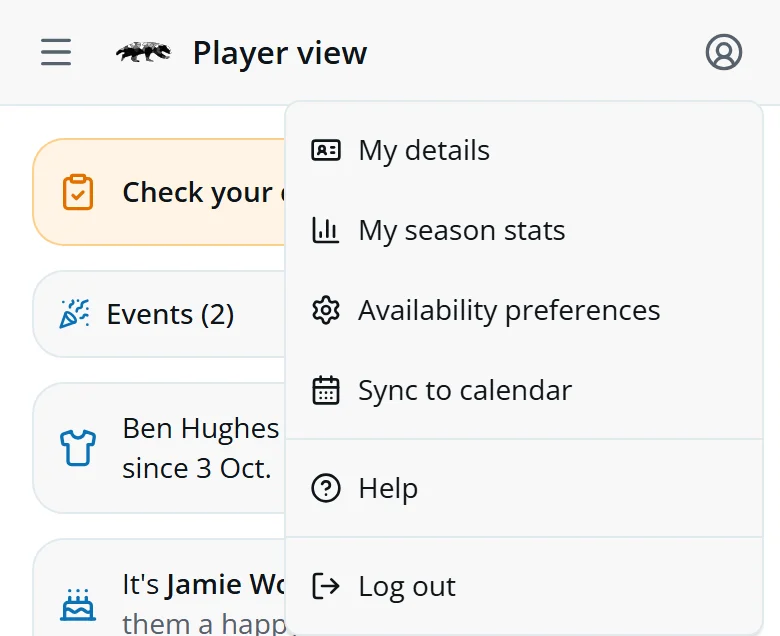
- Your account, top rightMy details, My season stats, Availability preferences, Sync to calendar, Help, Log out
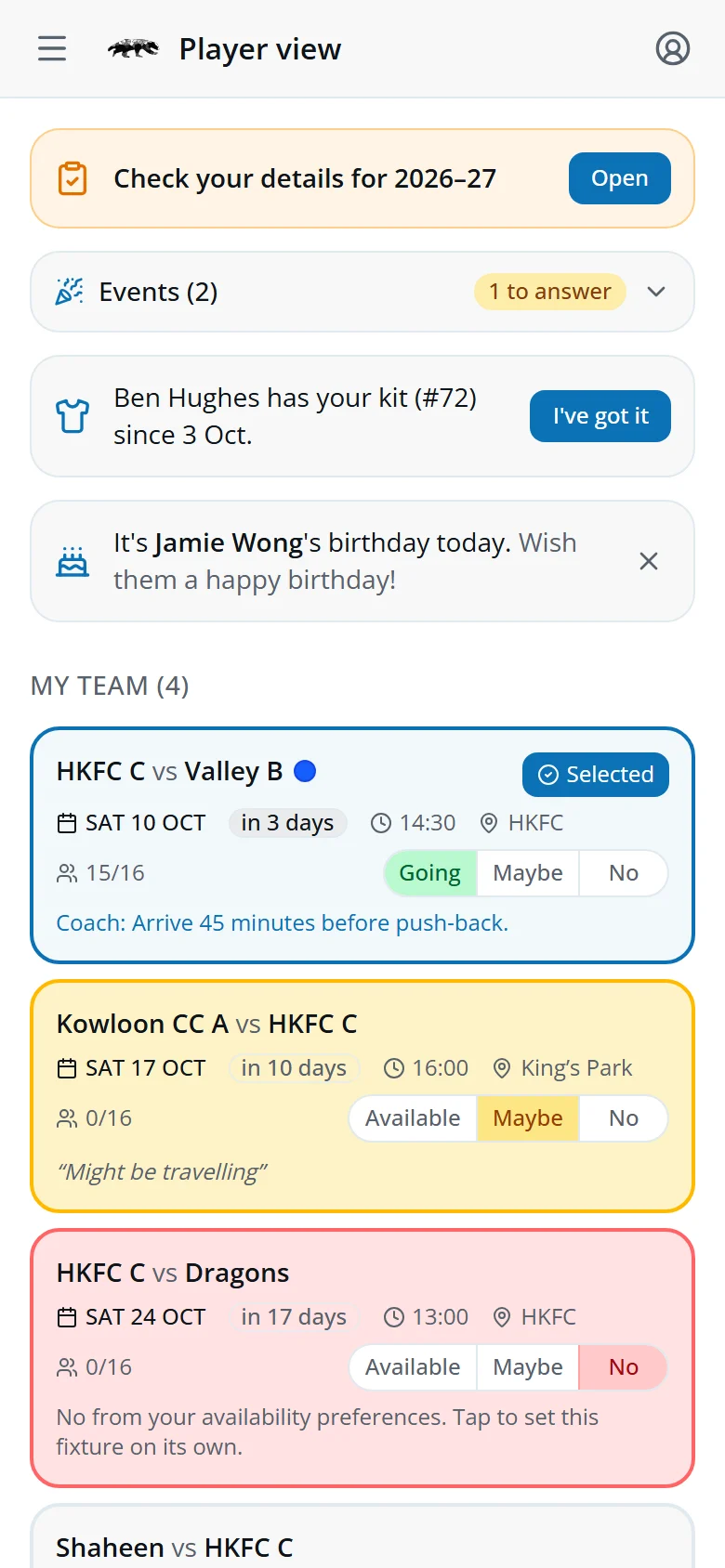
Available, Maybe or No
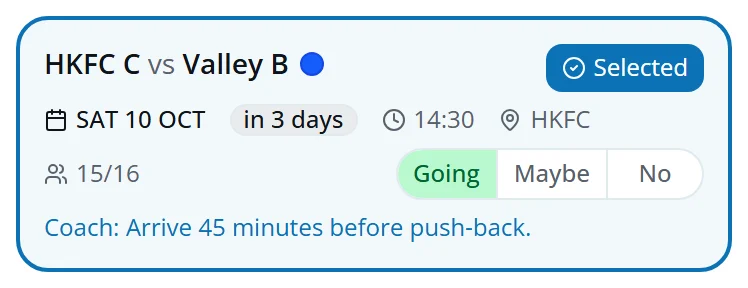
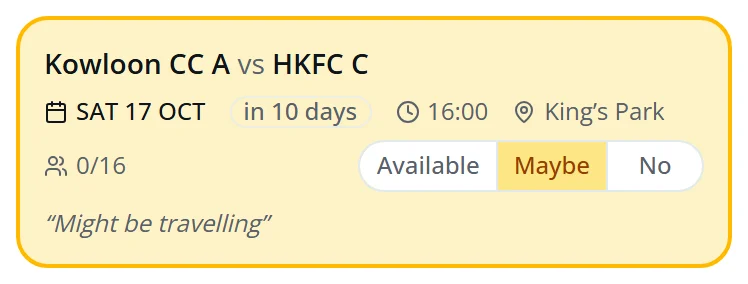
Every fixture card has three buttons. One tap and your coach can see it.
- AvailableYou can play. It reads Going once you're picked.
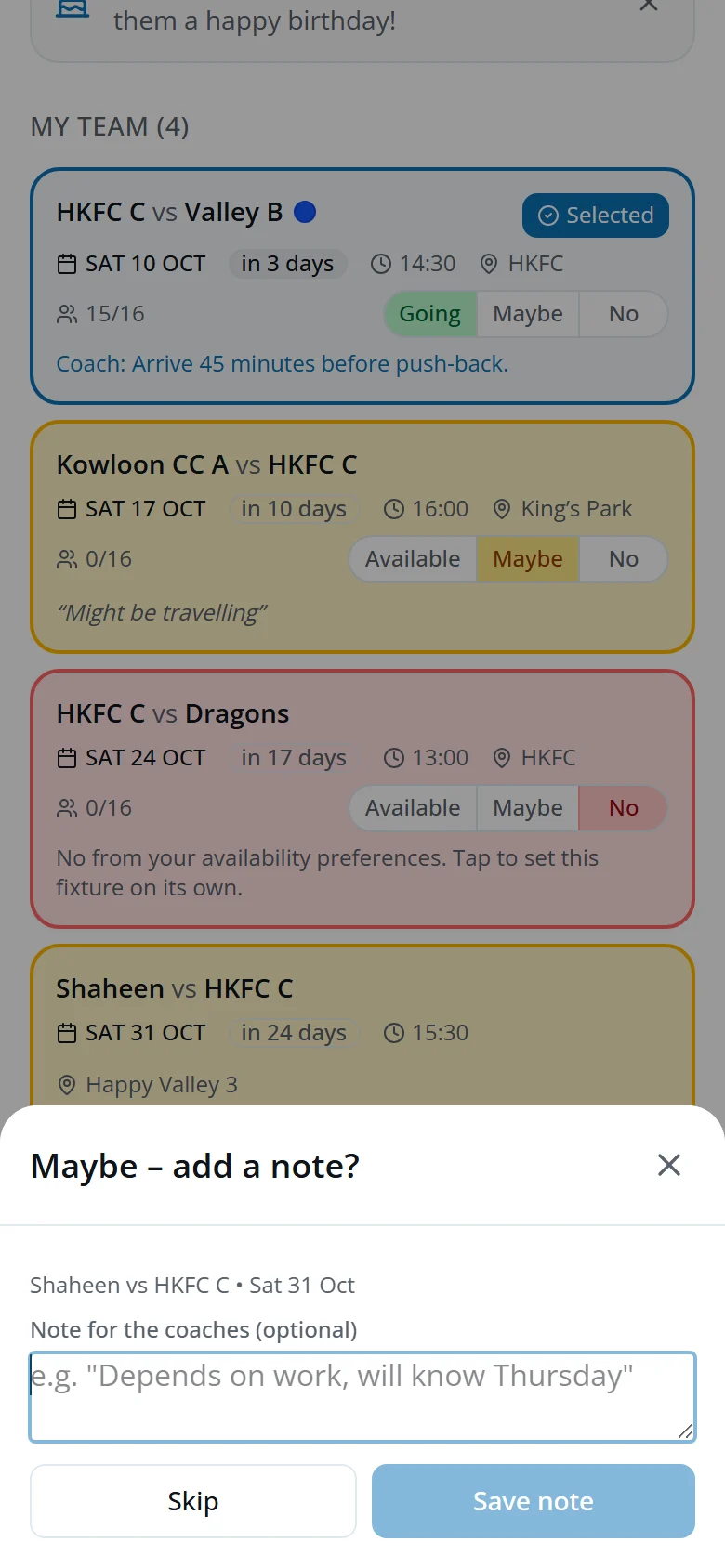
- MaybeNot sure yet. The card turns yellow.
- NoYou can't make it. The card turns red.
- SelectedYou're in the squad. The dot shows the kit colour.
Add a note and see who's playing
Tap Maybe or No and you can leave your coach a note, such as “Away that weekend”. Tap Save note, or Skip.
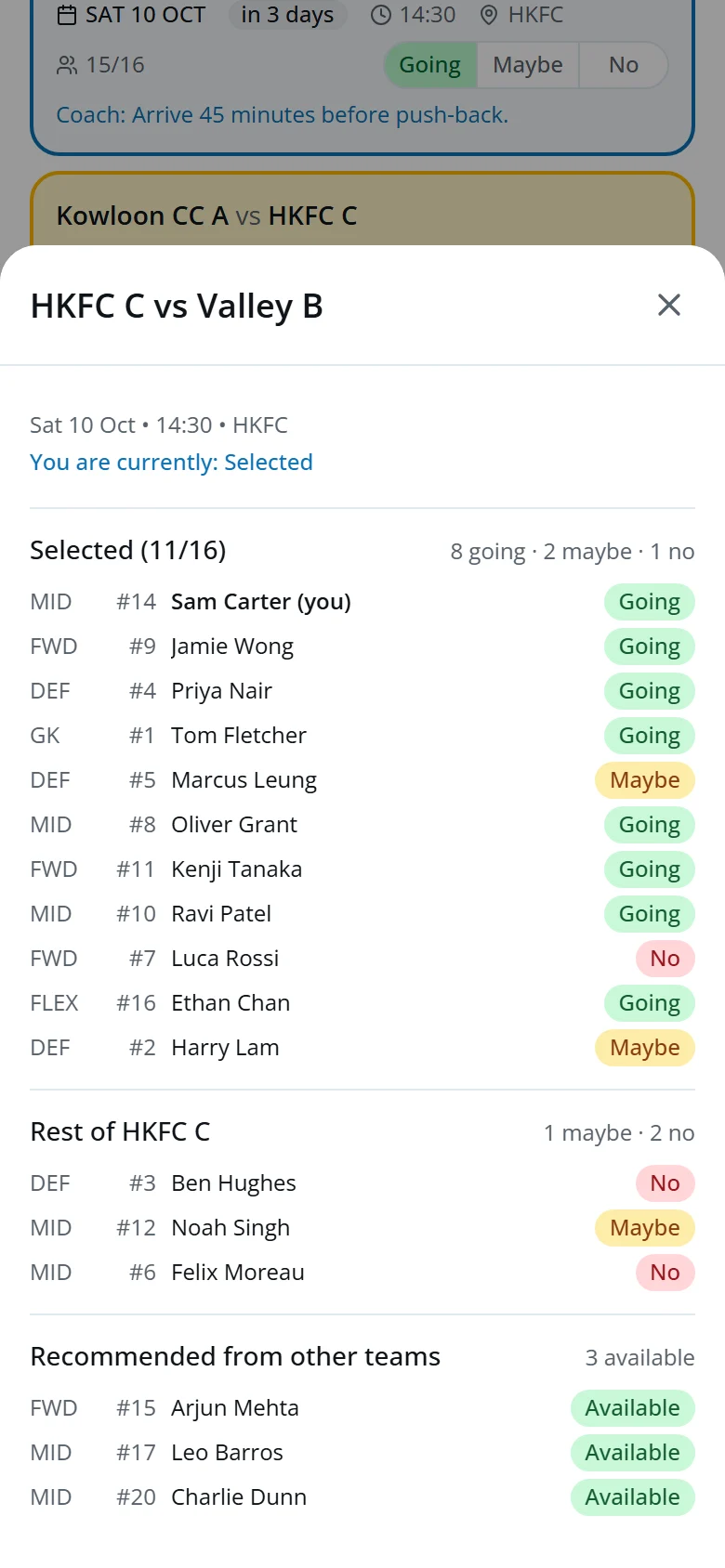
Tap the card itself to see the squad, the rest of your team and who's available from other teams, with everyone's answer.
Out for the whole day?
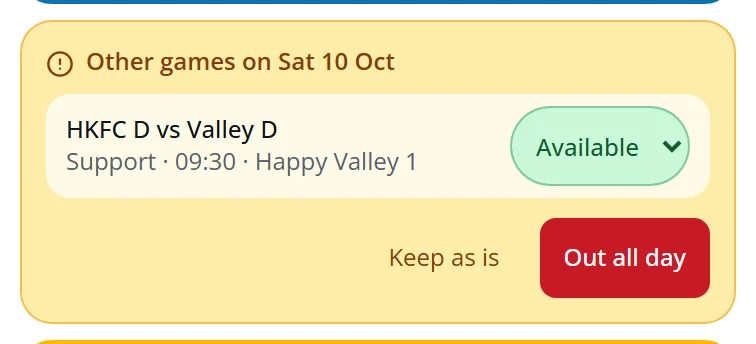
When you say No to your team's game, any other game you're still down for that day appears underneath.
- Out all dayNo to every game that day.
- Keep as isYou can still play the other game.
Help out the club's other teams
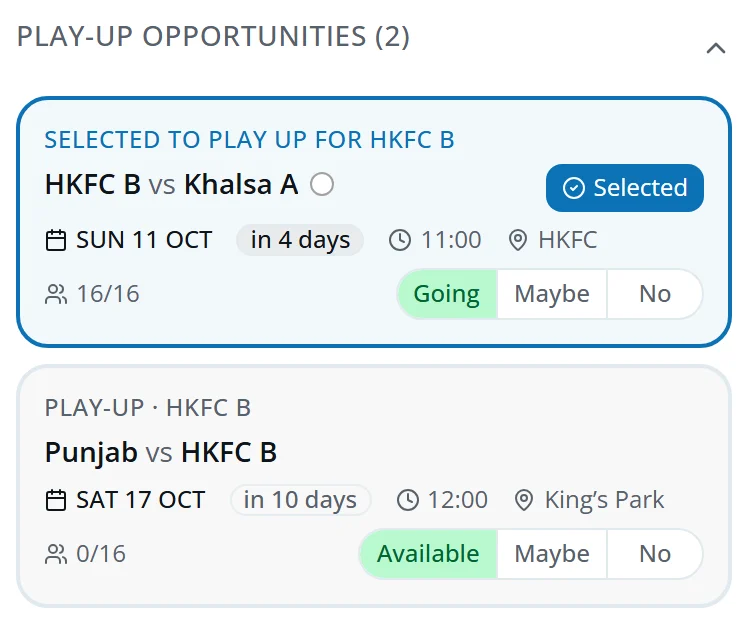
Below your own fixtures are two more lists. Tap a heading to open it, then answer the same way.
- Play-Up OpportunitiesGames for the teams above yours.
- Support FixturesGames for the teams below yours.
Away for a while?
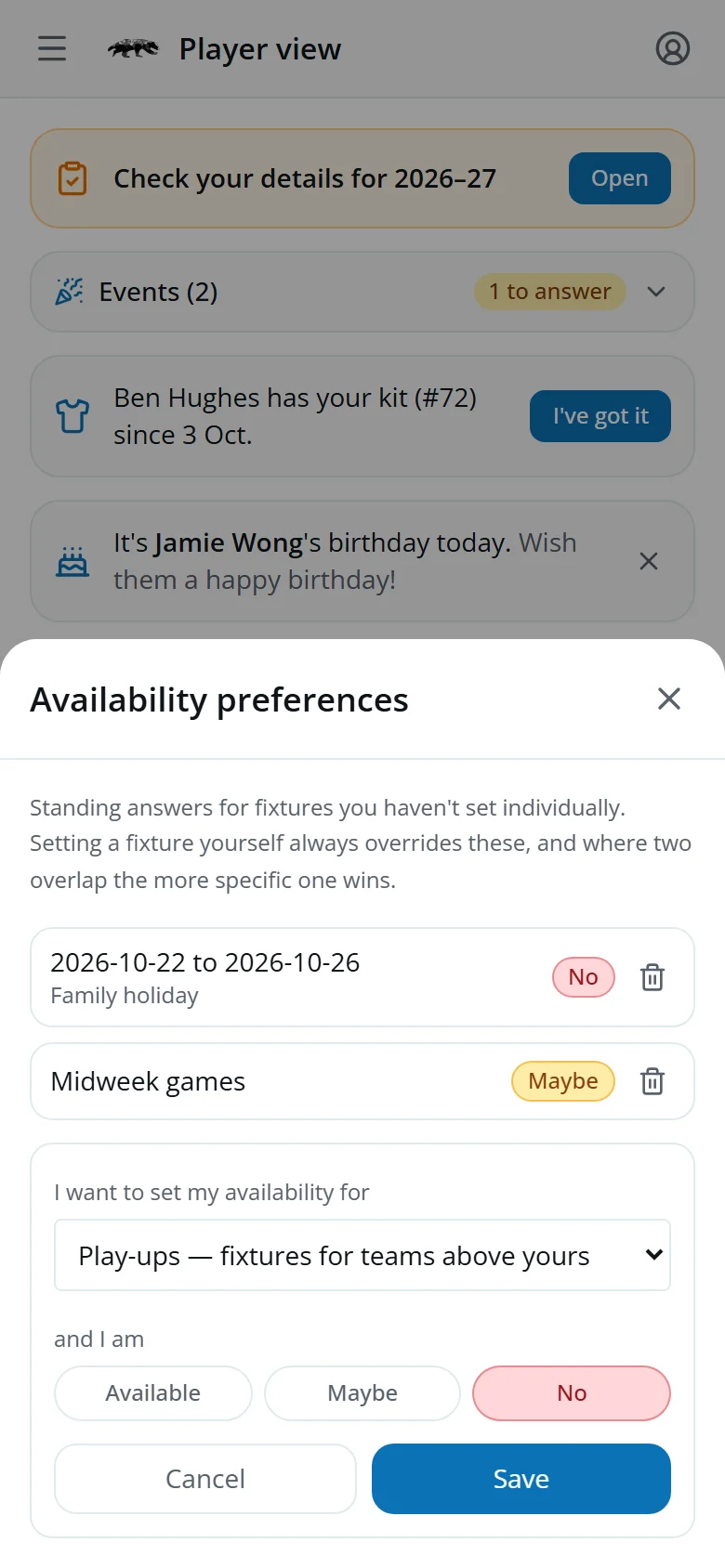
In your account menu, tap Availability preferences to set an answer that covers many fixtures, such as a holiday or all midweek games.
- Tap Add a preference.
- Choose which fixtures, then Available, Maybe or No.
- Tap Save.
Answering a fixture yourself always overrides a preference.
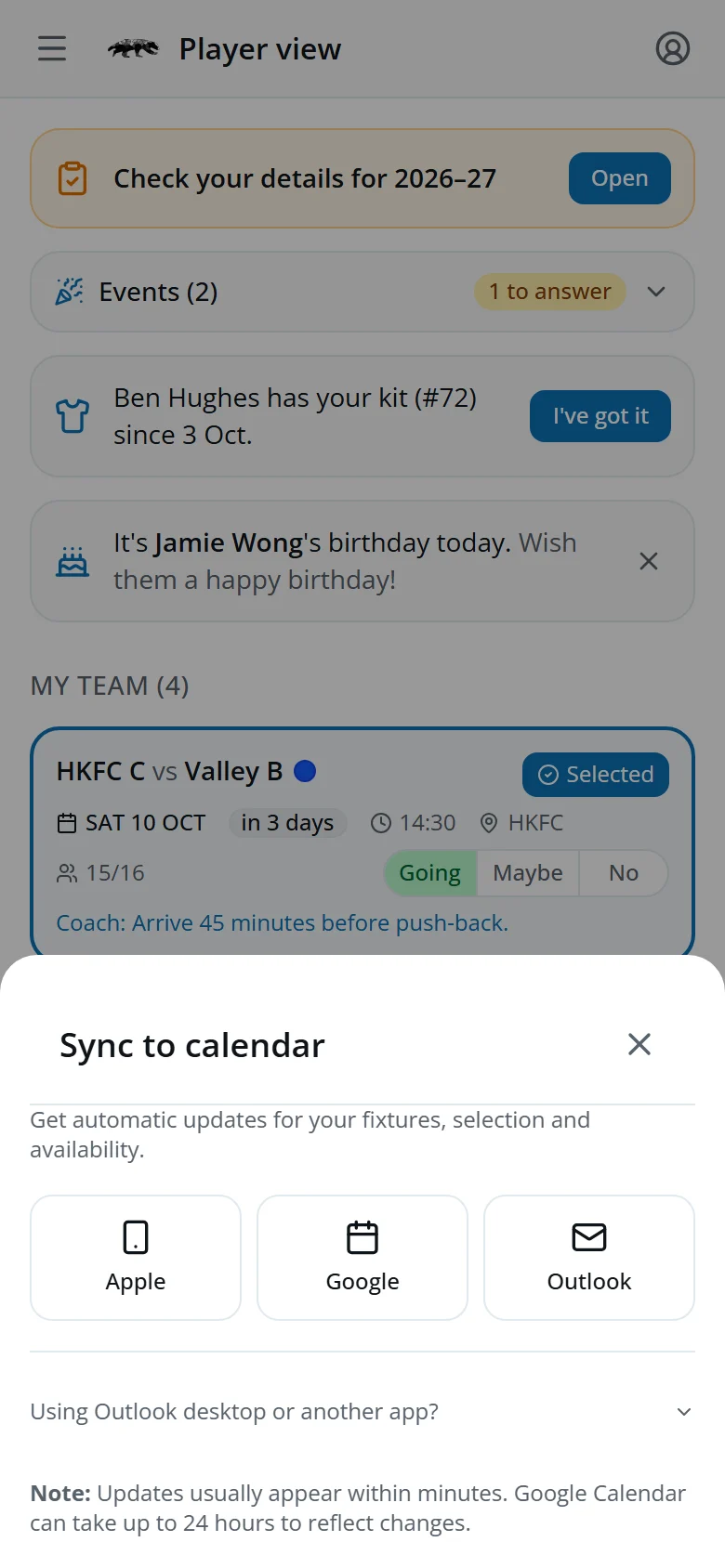
Fixtures in your calendar
- In your account menu, tap Sync to calendar.
- Tap Get calendar link.
- Choose Apple, Google or Outlook.
Your calendar then updates by itself, including when you're selected.
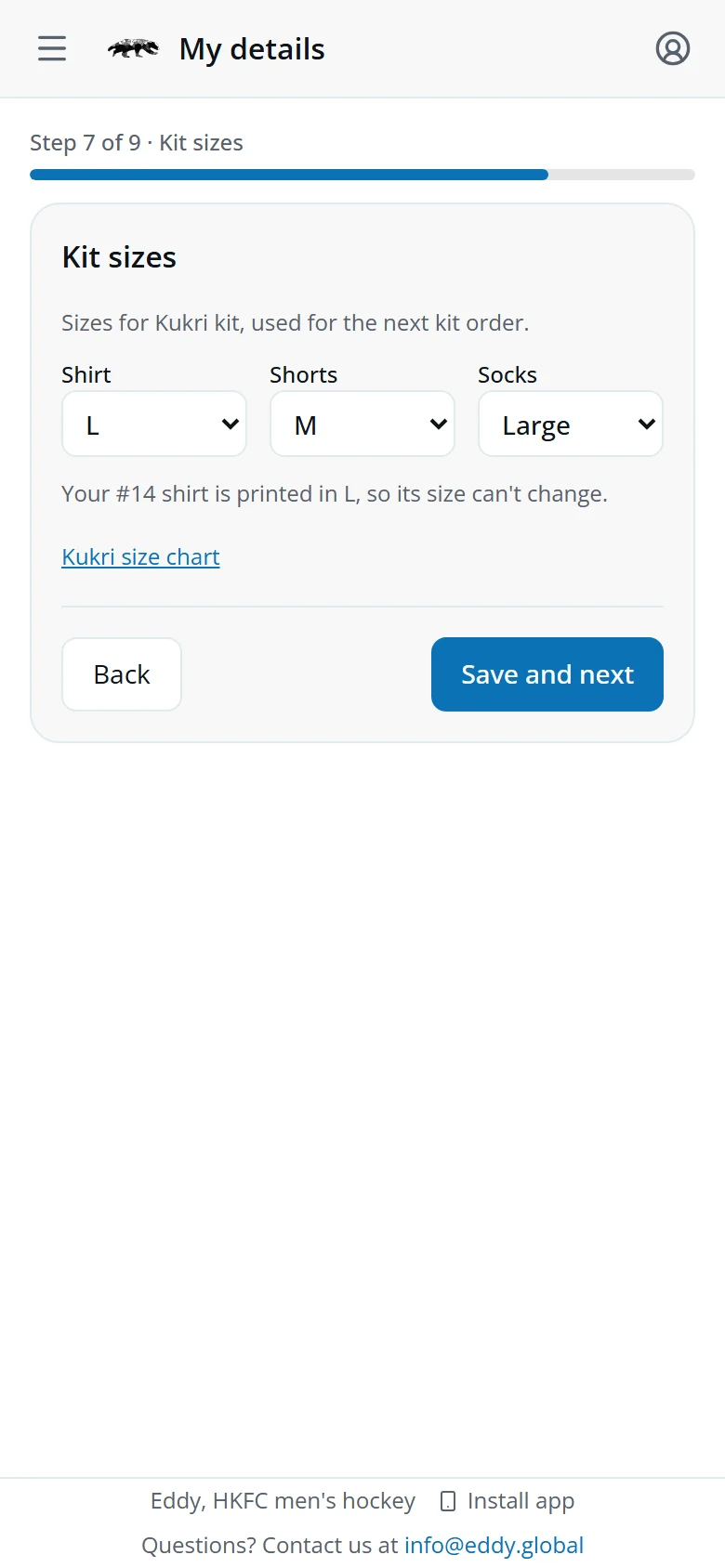
Check your details
Tap Open on the reminder at the top, or My details in your account menu. Go through each step and tap Save and next, then Confirm my details at the end.
The Kit sizes step sets the sizes for the next kit order. There's a size chart if you need it.
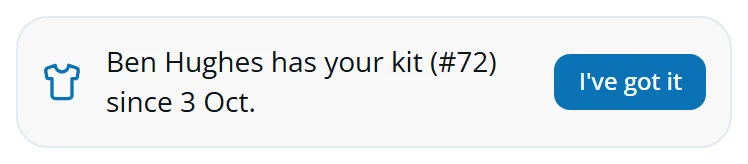
Where's my kit?
A card on your home screen shows where your kit is: on order, ready to collect, or who has it.
- Tap I've got it once it's in your hands.
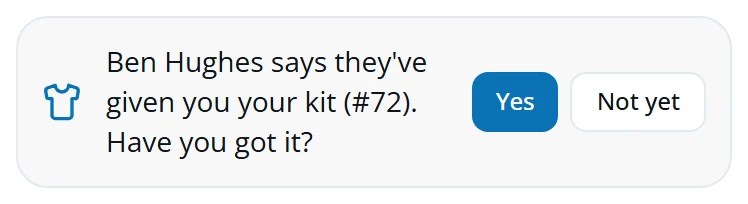
- If a captain says they've given it to you, tap Yes, or Not yet if you haven't got it.
Invite someone to join
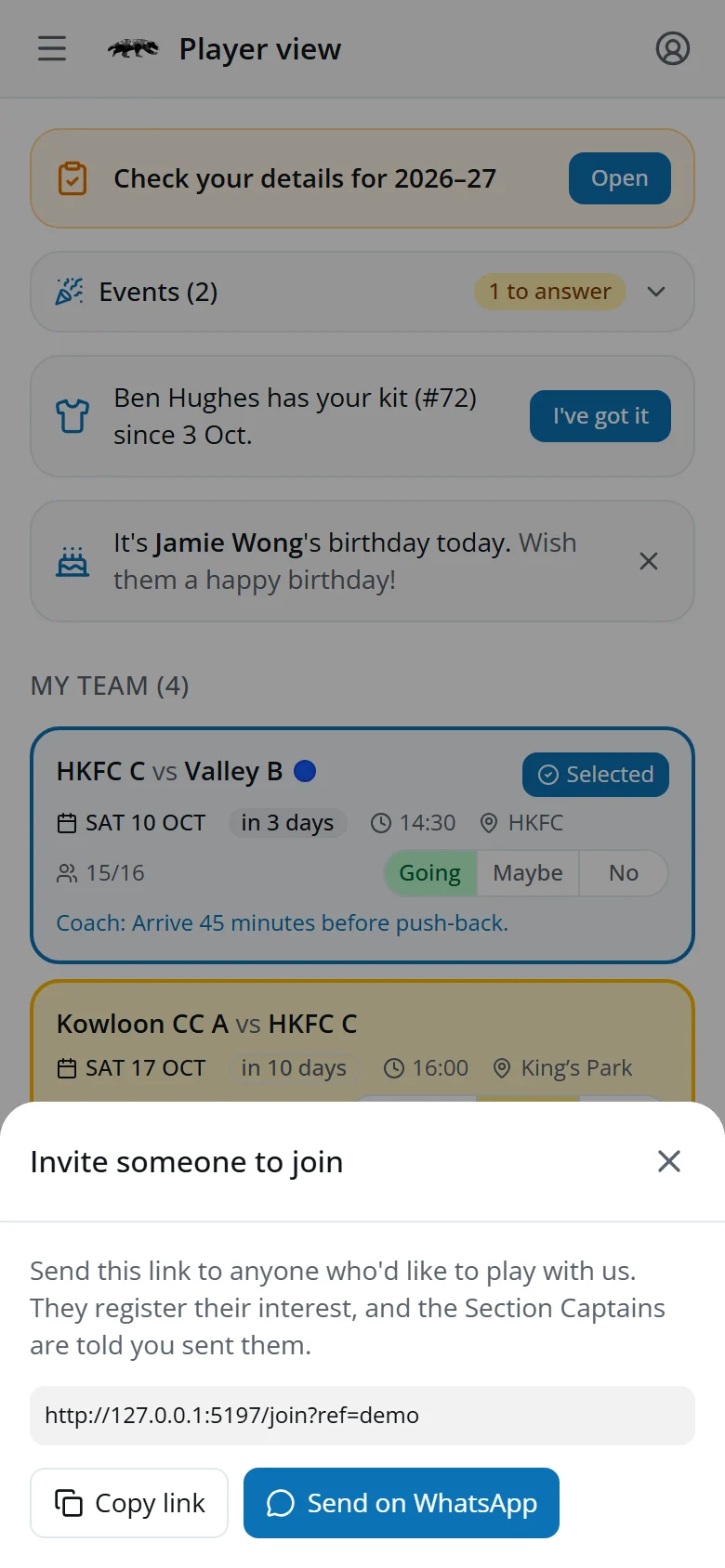
Know someone who'd like to play? Open the menu at the top left and tap Invite someone to join, then Send on WhatsApp or Copy link.
The Section Captains are told you sent them.
How your season's going
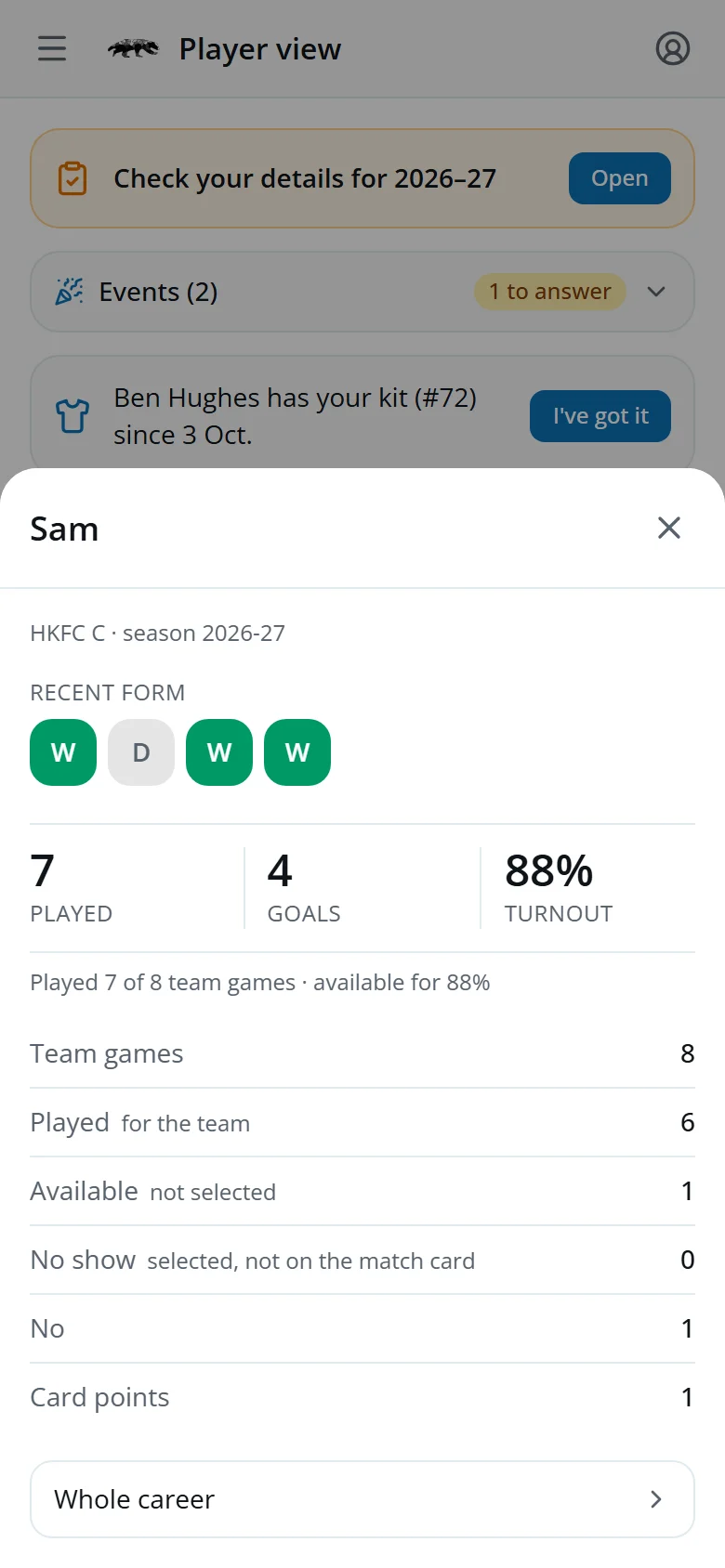
In your account menu, tap My season stats to see your form over the last five games, plus your games played, goals and turnout.
Tap Whole career at the bottom for every season you've played.
Recent results, at the bottom of the home screen, has the latest scores and scorers.
The club's record books
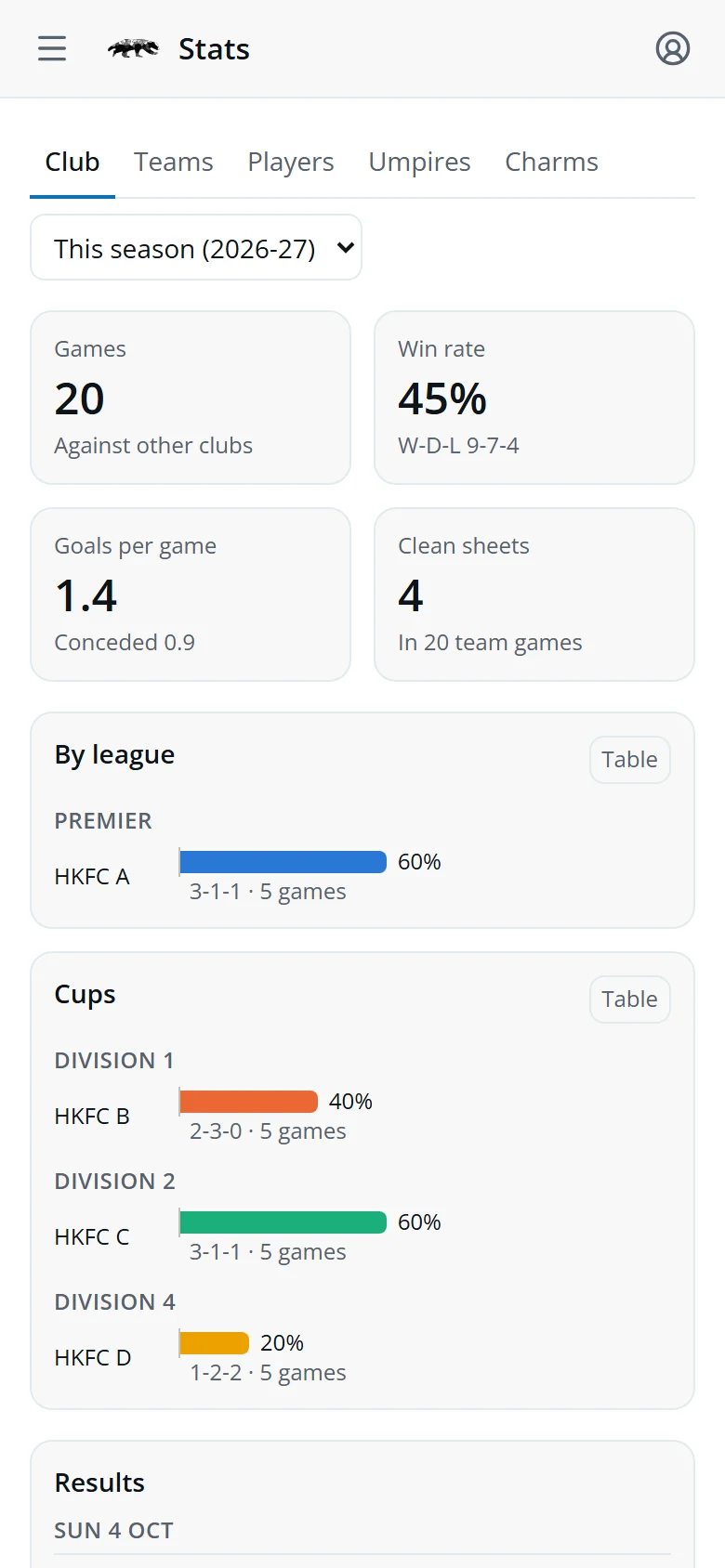
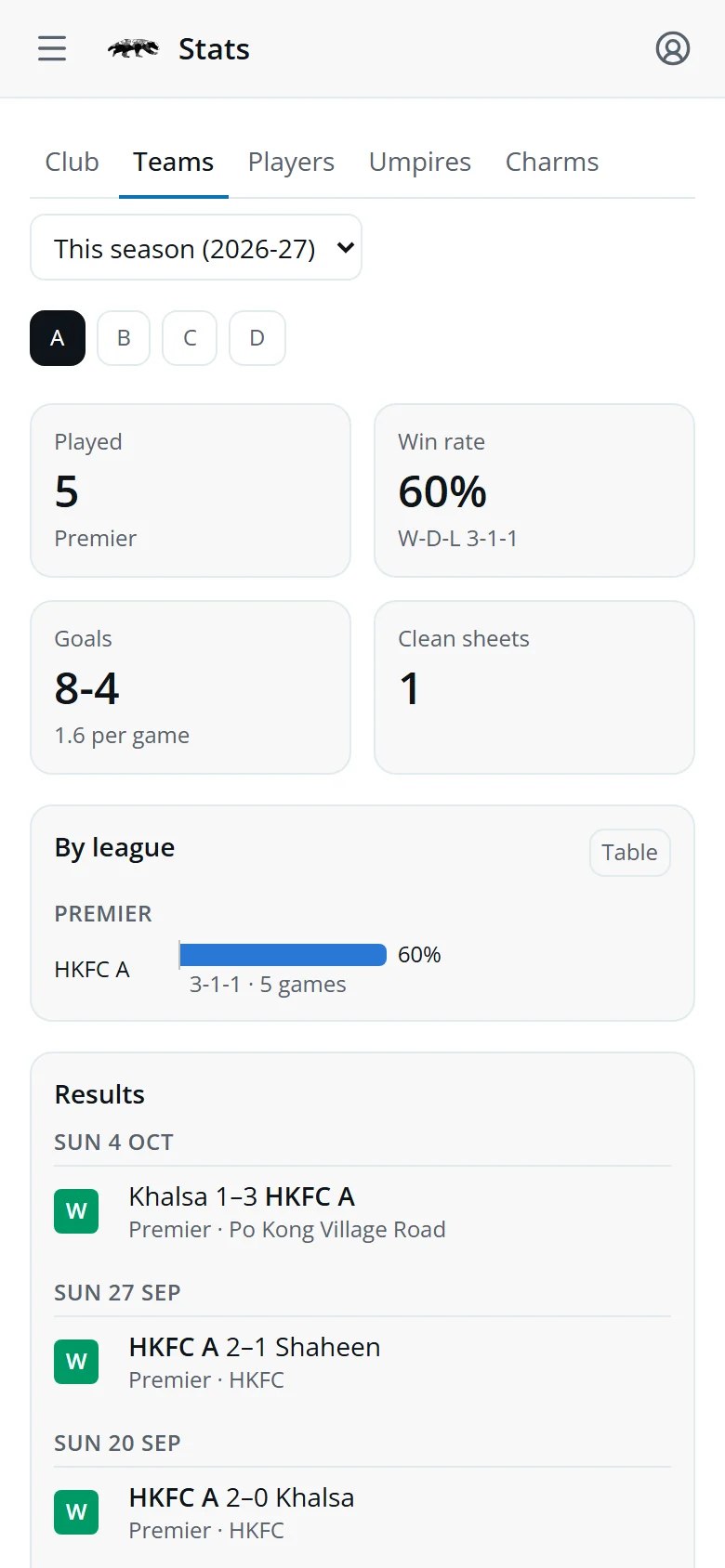
Open the menu at the top left and tap Stats. Pick This season, an earlier season or All time from the menu at the top.
- ClubResults, win rate, league and cup records, and the top scorers.
- TeamsThe same for one team at a time.
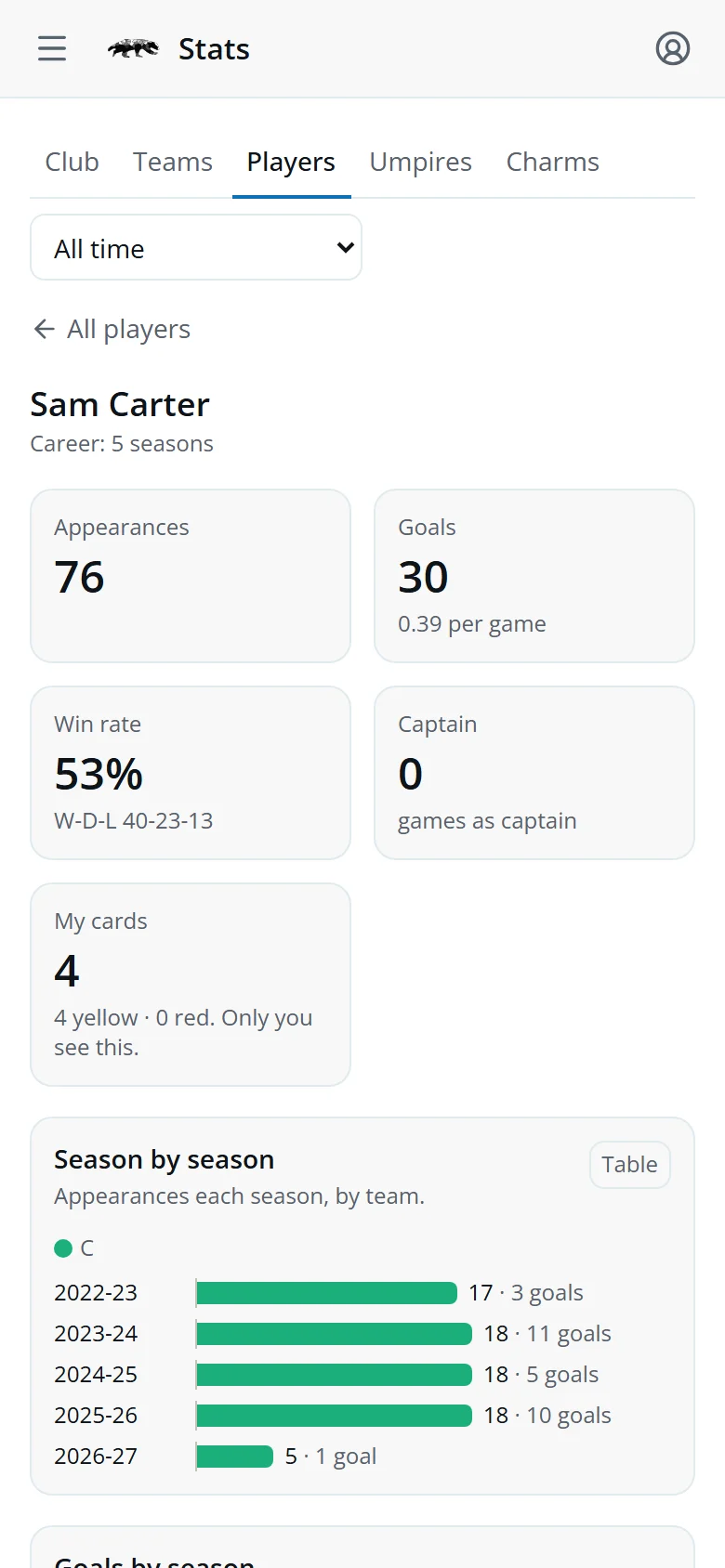
- PlayersLook up anyone's appearances and goals.
- UmpiresHow we do with each umpire.
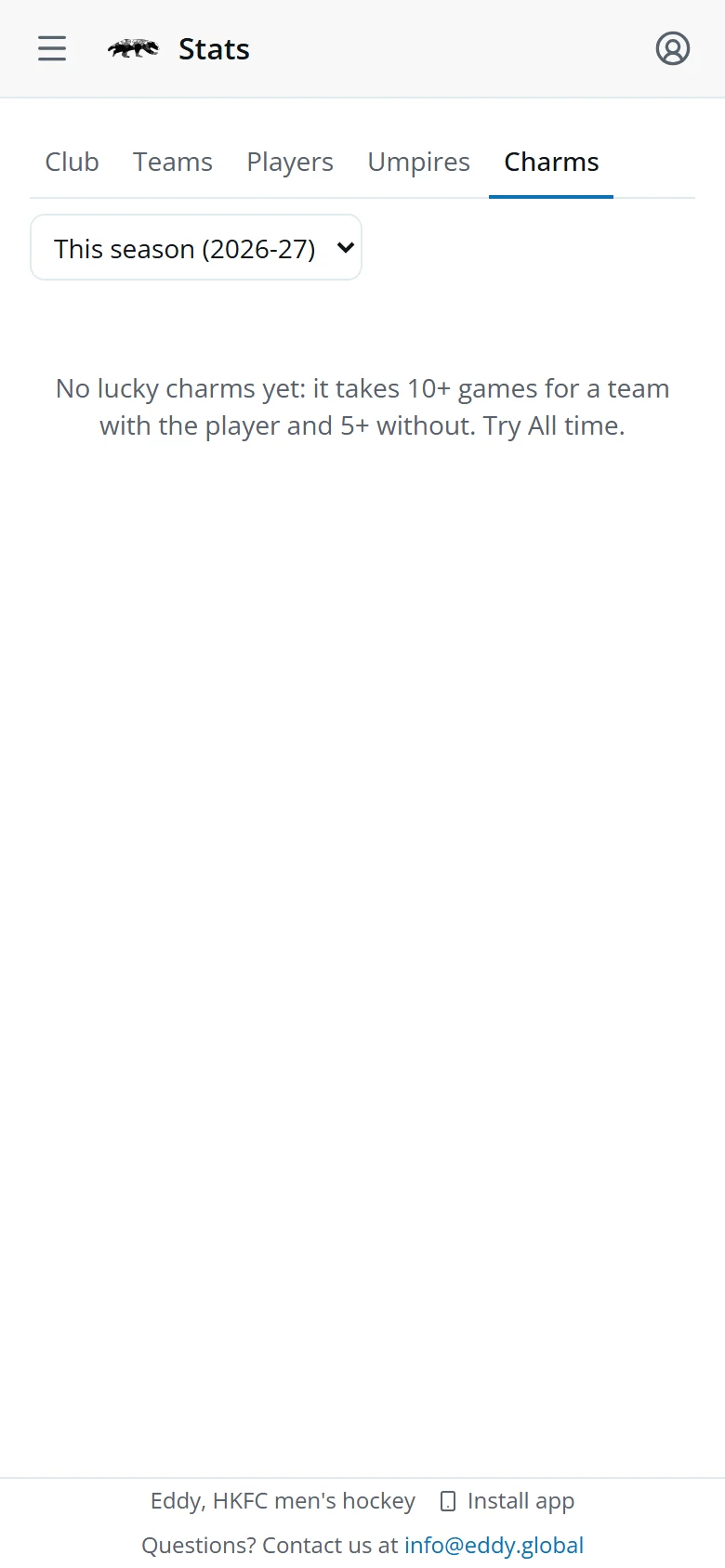
- CharmsPlayers whose team wins more often when they play.
Tap Table on a chart to see the numbers.
Your career and lucky charms
On the Players tab, tap My career to see your appearances, goals and win rate across every season. Tap anyone's name for their figures in the season you've picked.
The Charms tab compares how often a team wins with a player and without them. Choose All time to see the full list.
Quick answers
Can I change my answer?
Yes, any time before the game.
I told my coach on WhatsApp instead. Is that OK?
Yes. Your coach can enter it for you.
I'm a goalkeeper and I see every one of the club's fixtures. Why?
Keepers in the lowest team often cover other teams, so they see every fixture. Tap Set whole day above a date to answer all its games at once.
Where are the Hockey Rules quizzes?
In the menu at the top left. Your latest score shows next to each quiz.
My stats look wrong.
Stats come from the match cards.
It says “Your access is not active”.
Your record needs activating by the Section Captain. Once they have, tap Try again.