A new season in three steps
-
Fill the offices
Check who holds each office. Add or Retire as people change.
-
Set up the teams
Give each team its coaches, captains and target squad size.
-
Tidy the records
Find a player in People and fix their squad, or make them inactive if they've stopped.
Your screens
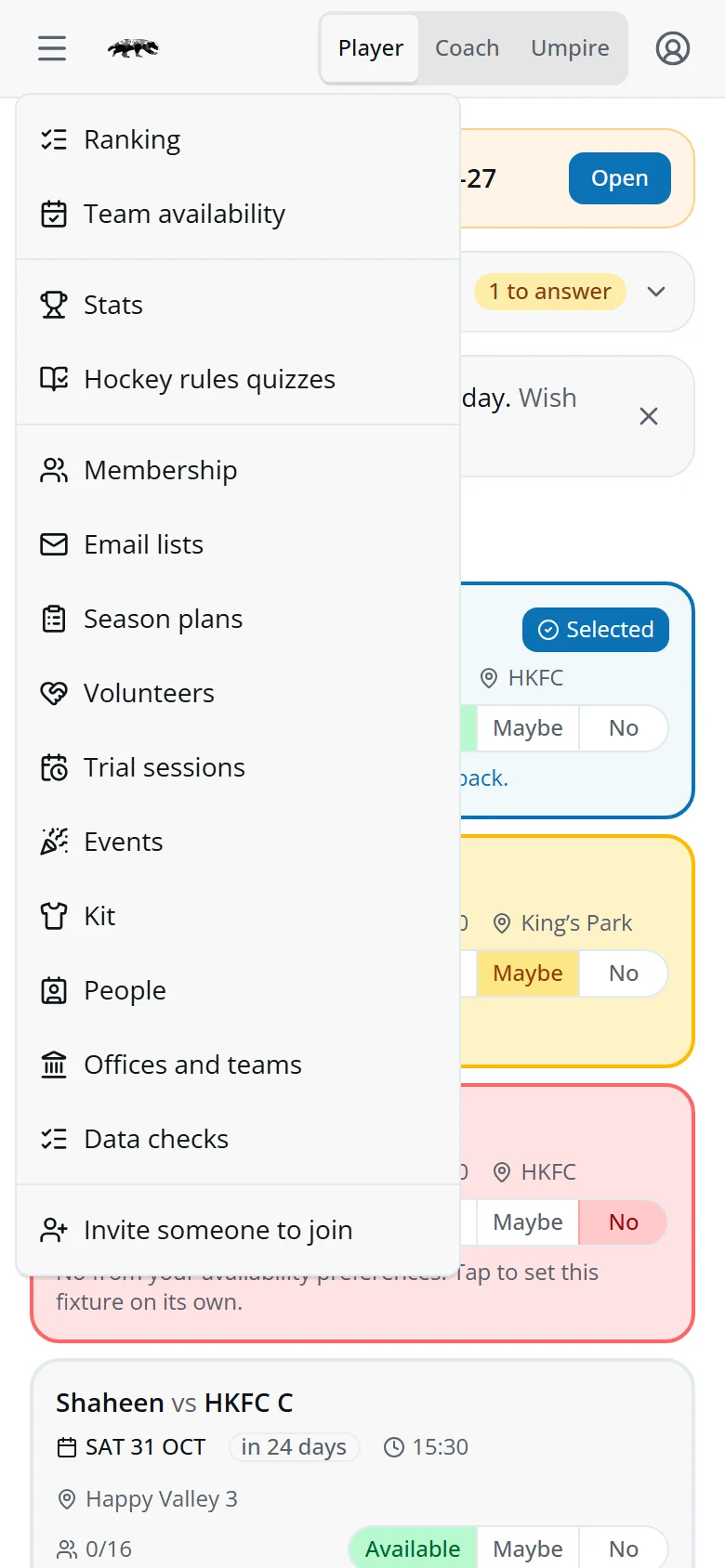
Tap the menu at the top left. It lists every officer screen you open.
The Player / Coach / Umpire switch at the top changes view. You have coach rights on every team, and the Umpire view's coordinator tools.
Help in your profile menu, top right, opens the guides.
Offices
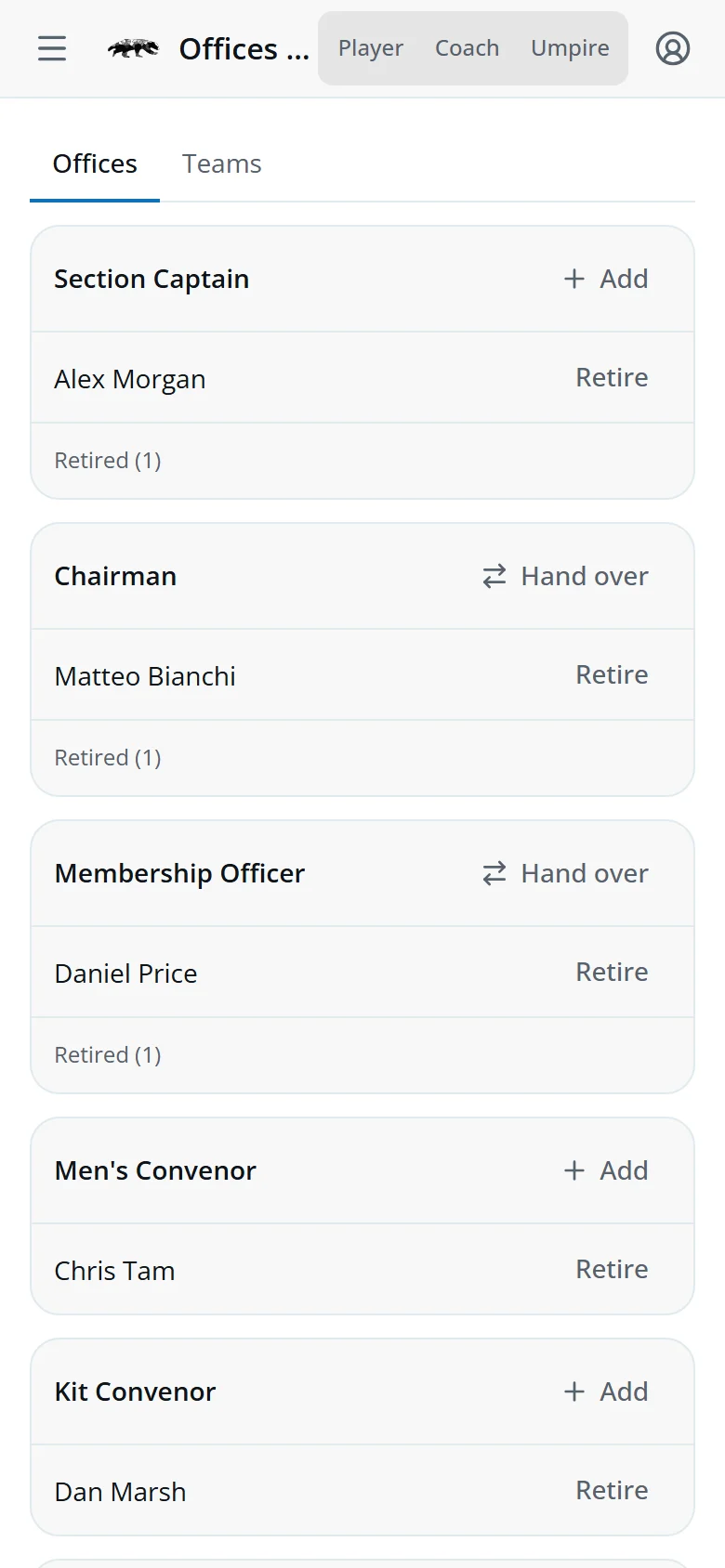
Open Offices and teams. Every office is listed, with its holders.
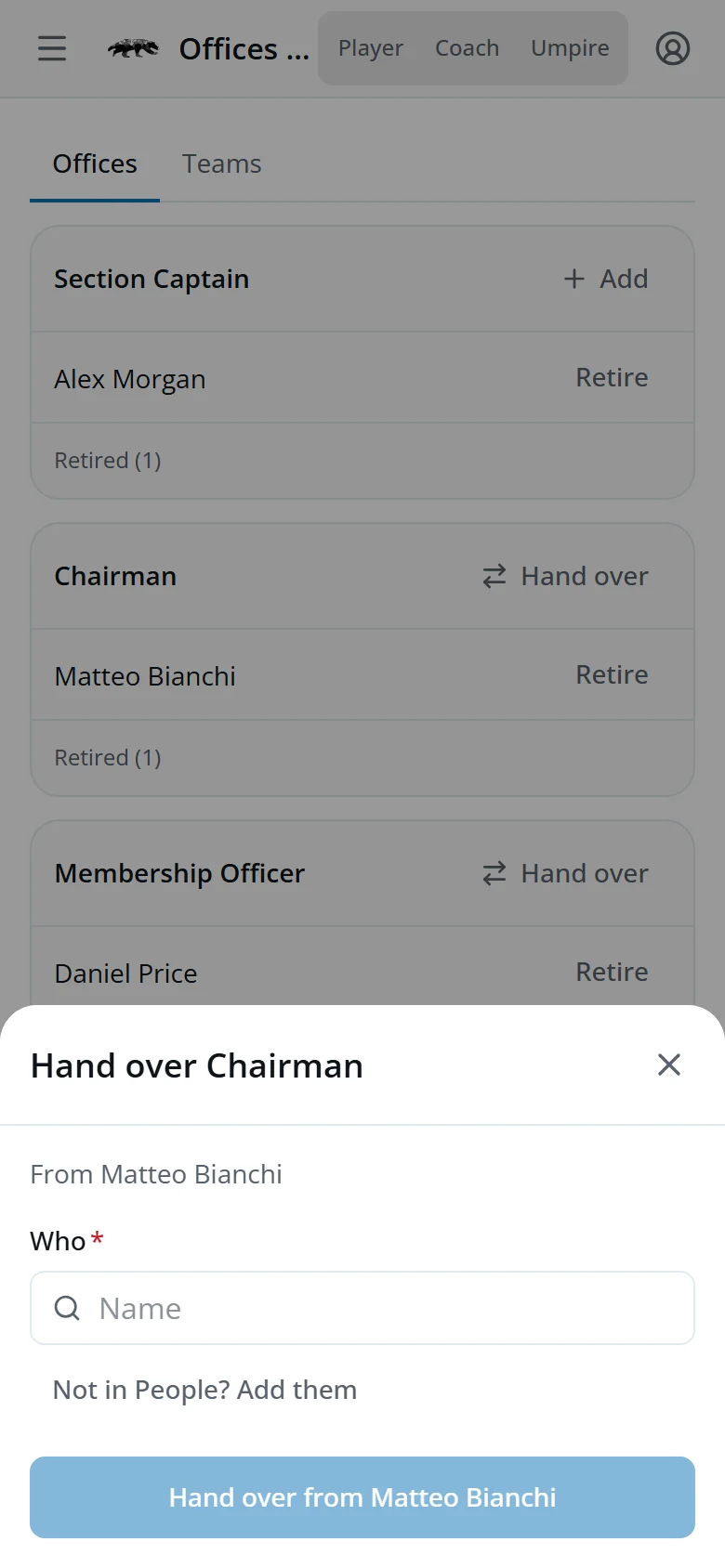
- AddPick someone from People. Not there? Tap Not in People? Add them and enter their surname and email.
- Hand overThe Membership Officer and the Chairman have one holder at a time. The new holder takes over and the old one is retired in one go.
- RetireThey stop holding the office. Their screens go from their menu.
- Retired (1)Past holders. Tap to show them, and Reactivate one if needed.
Coaches, captains and squad size
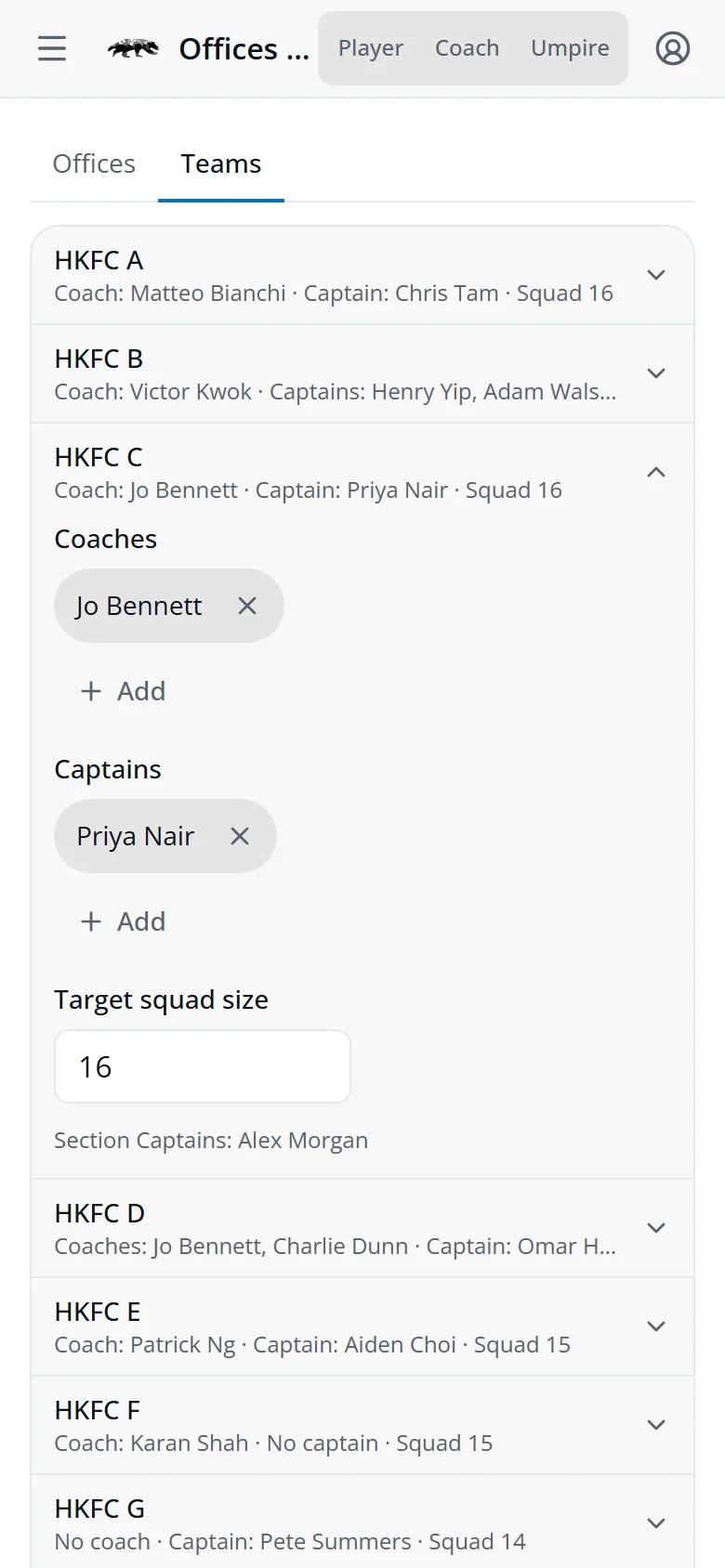
- Tap the Teams tab and tap a team.
- Add a coach or captain, or tap × beside a name to take them off.
- Set the Target squad size: the squad the coach picks to.
- Tap Save, or Undo to start again.
A team's coaches get Coach view for it.
People
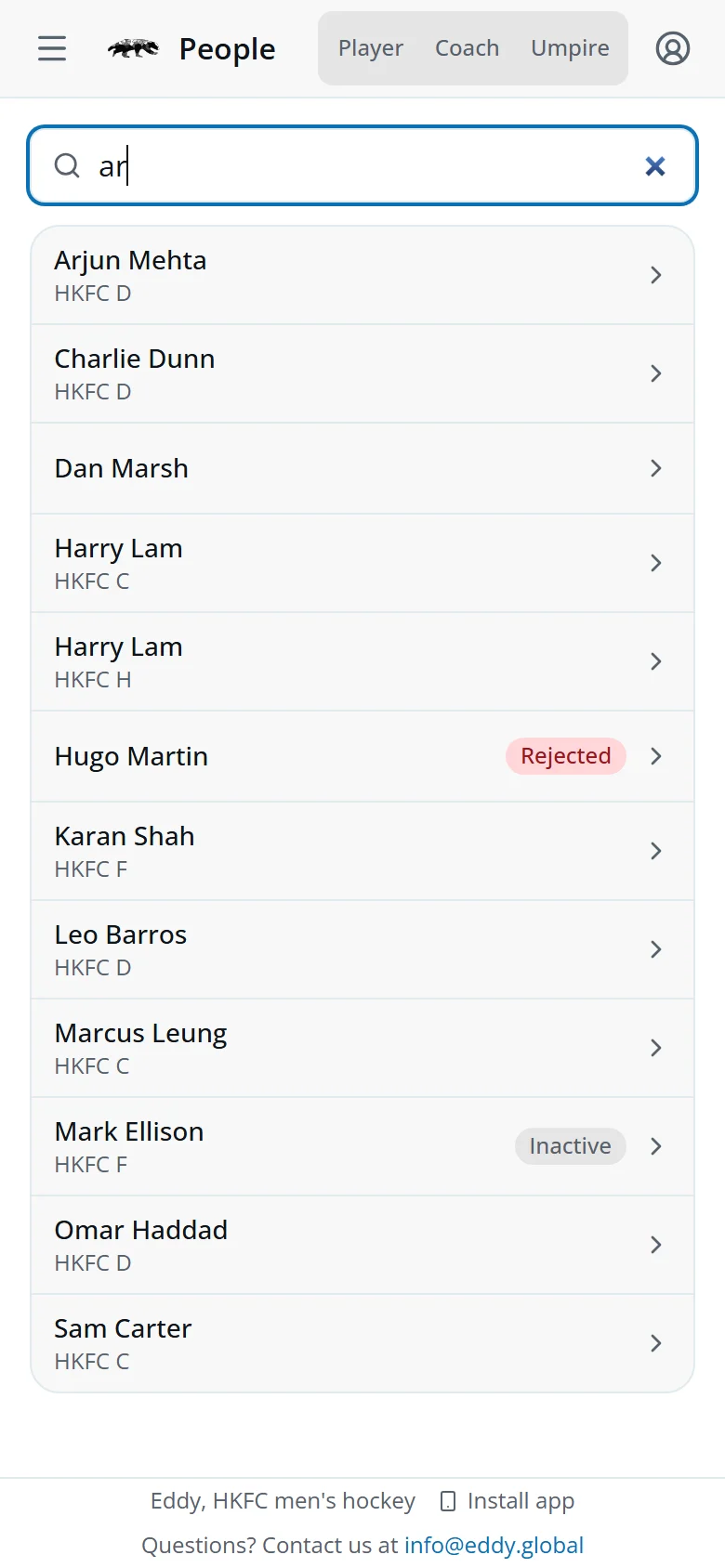
Open People and type part of a name. Tap a person to open their page.
- Applicant · stage 4Joining. The stage they've reached.
- TemporaryRegistered without joining, usually a visitor.
- RejectedTheir application stopped.
- InactiveNot playing now.
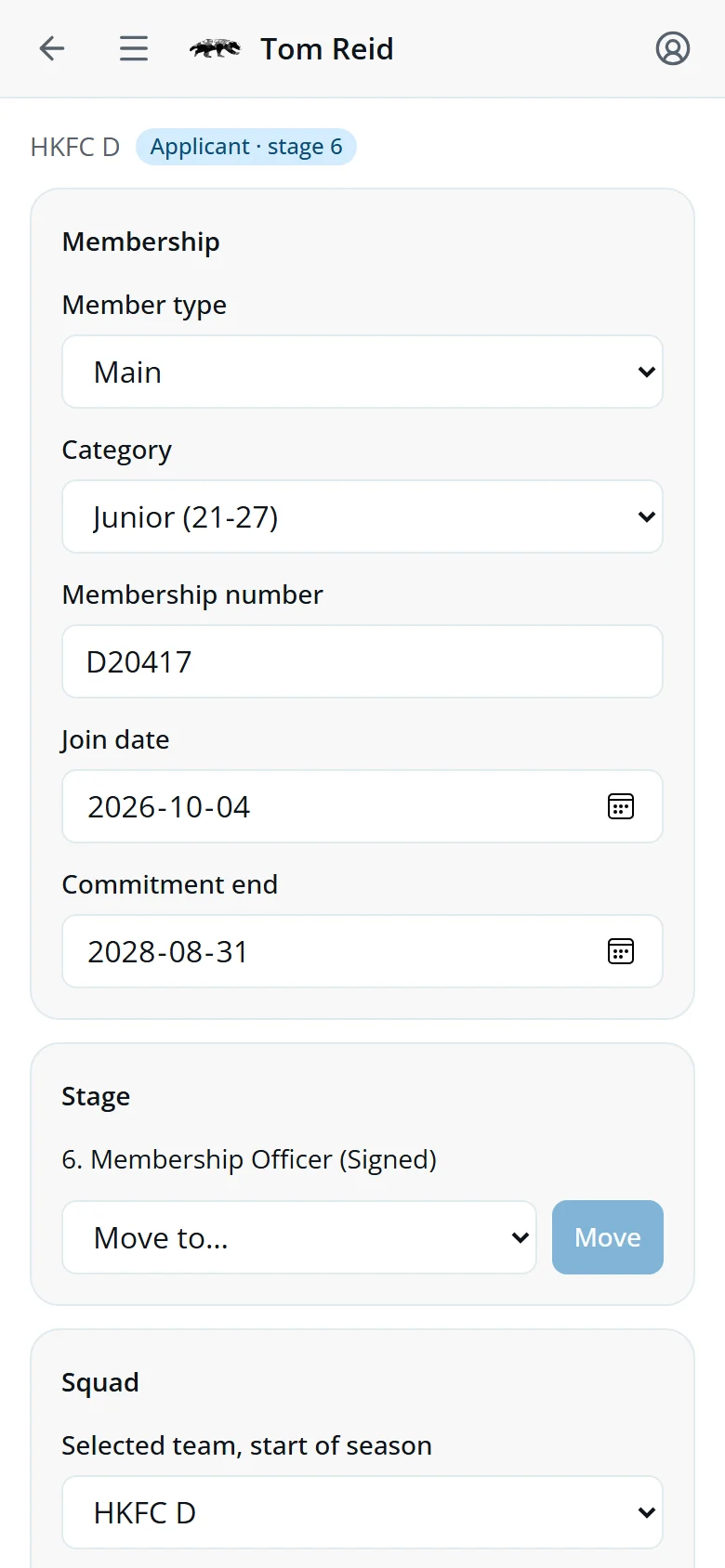
A person's page
- MembershipMember type, category, membership number, join date and commitment end.
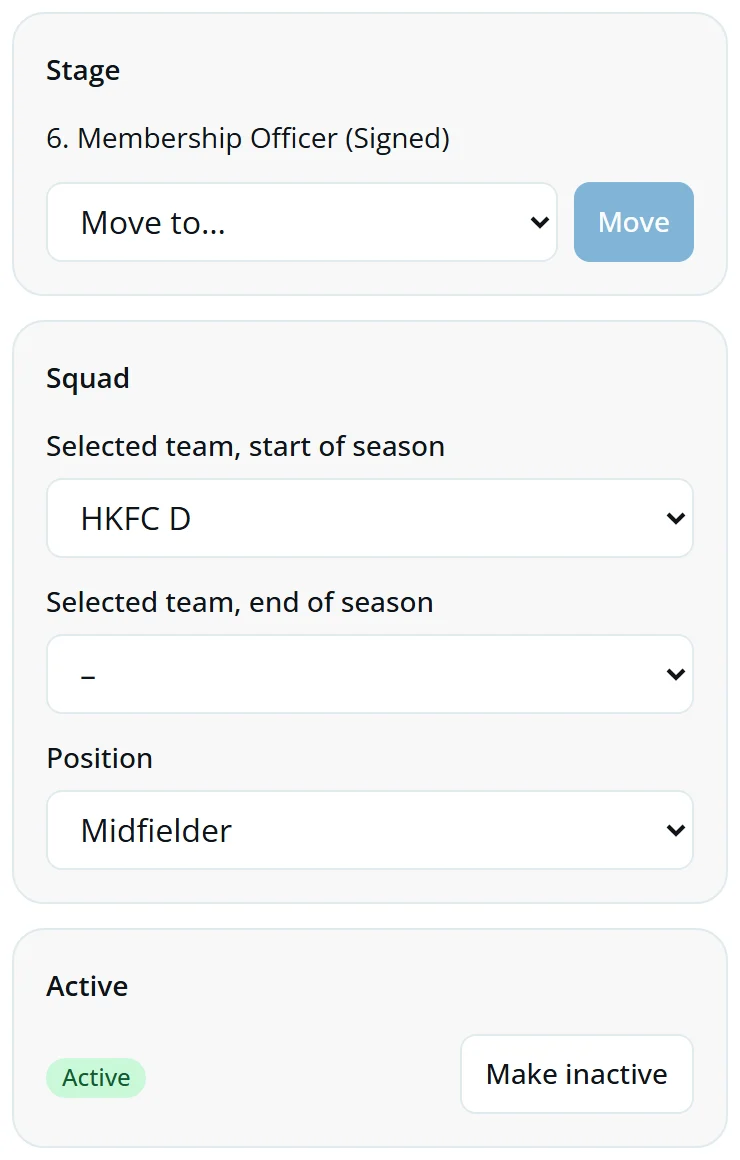
- StageWhere an applicant is. Pick a stage in Move to… and tap Move.
- SquadSelected team at the start and end of season, and position. This is the team Eddy shows for them.
- ActiveMake inactive or Make active again.
- HistoryEvery change, and who made it.
Change a field, then tap Save in that block.
Make a player inactive
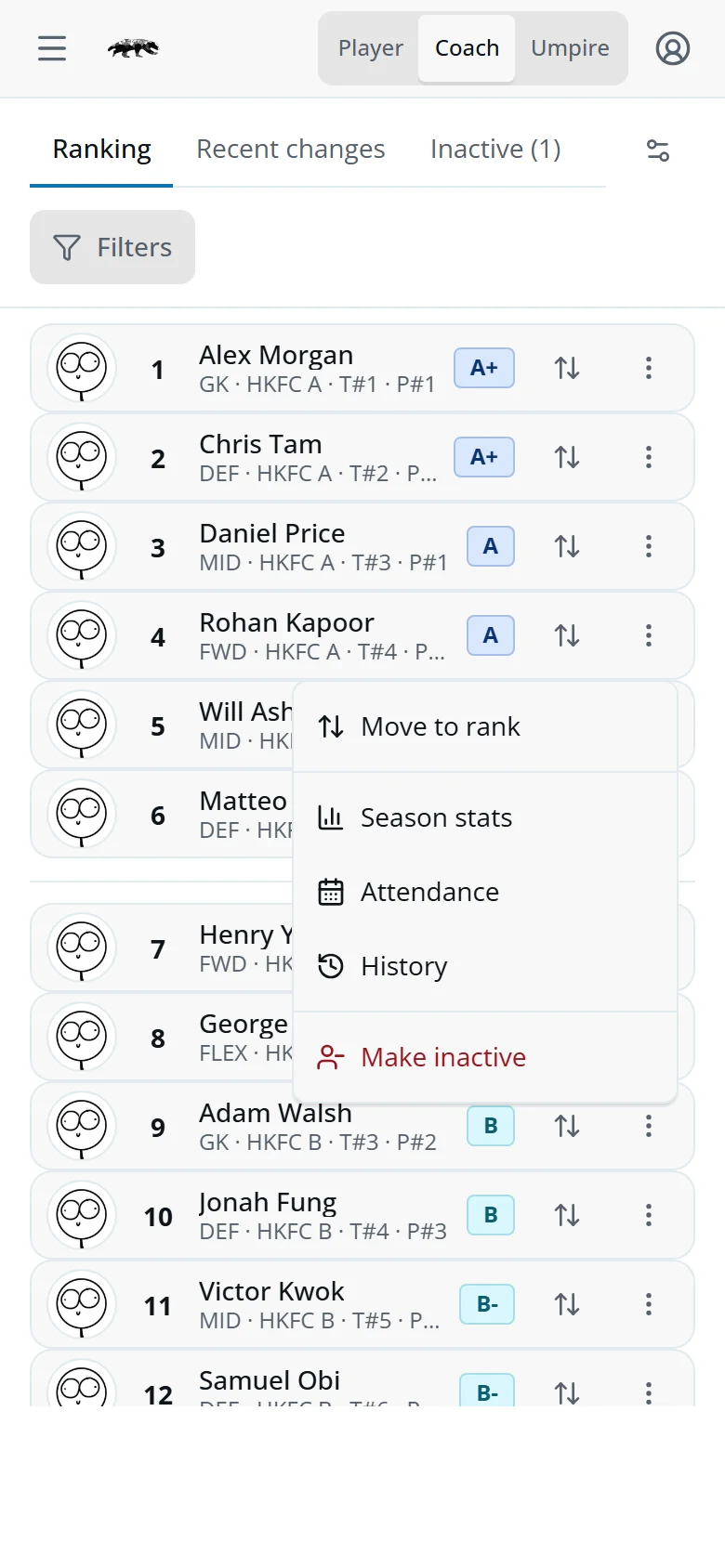
Only Section Captains can. An inactive player leaves the ranking and the squad lists.
- Their pageIn Active, tap Make inactive.
- RankingTap ⋮ on their row, then Make inactive.
Confirm, and they're off the lists.
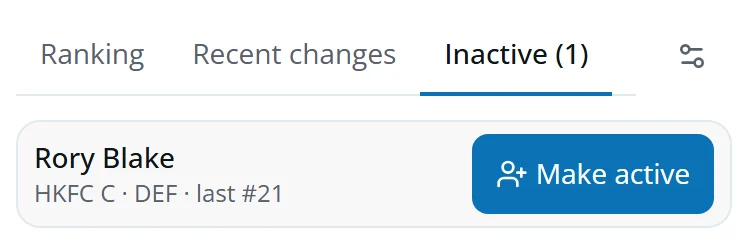
To bring them back, open the Inactive tab in Ranking and tap Make active, or use their page.
System
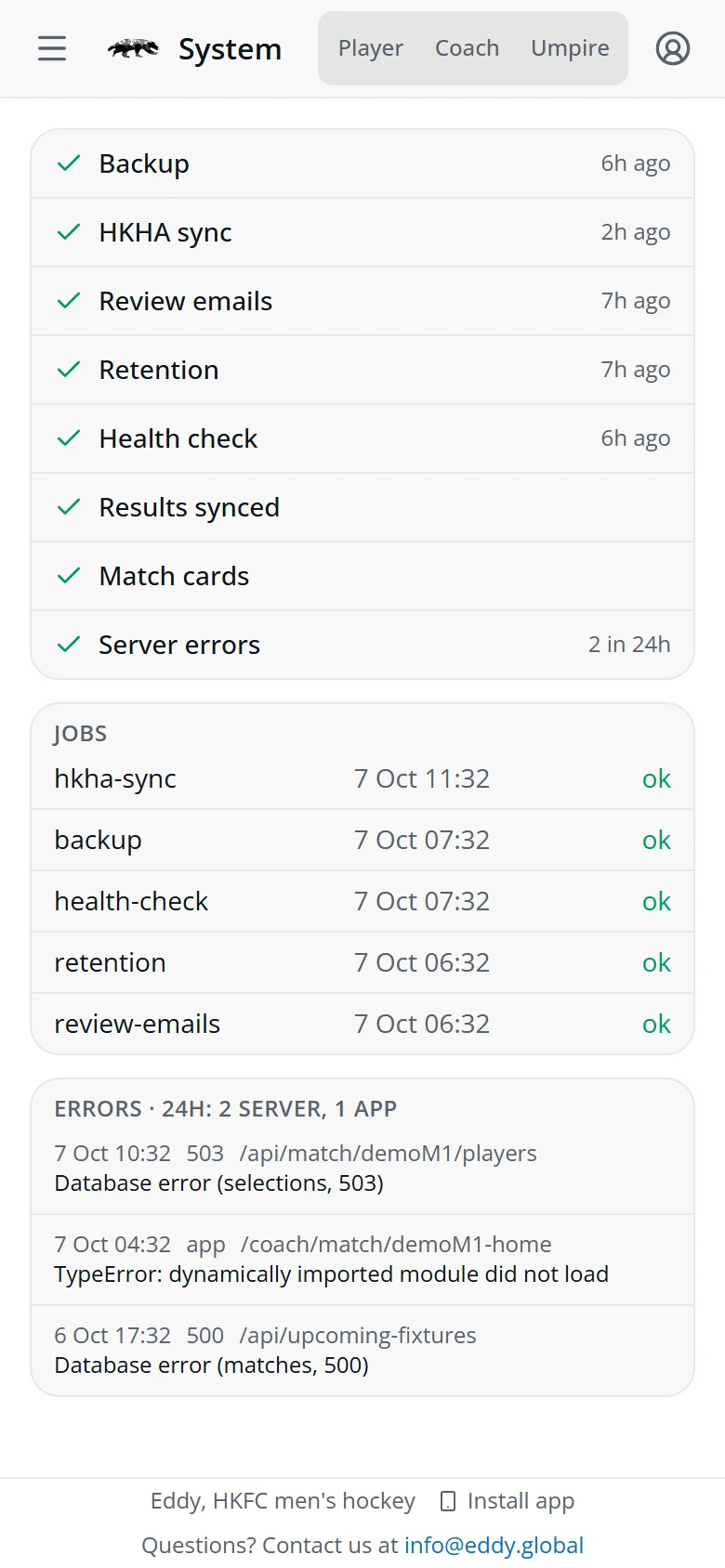
Open app.eddy.global/system. It isn't in the menu.
- ✓ ChecksBackups, the HKHA sync, emails and match cards. A red cross says what's wrong.
- JobsWhen each scheduled job last ran, and whether it worked.
- ErrorsWhat failed in the last 24 hours, on the server or in the app.
The other screens you open
- Coach guideCoach view, squads, Ranking, Team availability, Season plans and Volunteers.
- Membership Officer guideMembership, new joiners and commitment reviews.
- Kit guideKit.
- Events guideEvents.
- Sports Convenor guideData checks.
- Umpire guideUmpire view: the week's duties and the season report.
- Email listsPick a group, such as a team or the applicants, then copy the addresses or open them in your email as Bcc.
- Trial sessionsAdd the trial dates people registering to join can choose from.
Quick answers
A new coach can't see Coach view.
Add them to their team's coaches on the Teams tab.
I can't retire the Section Captain.
There must always be one. Add the new Section Captain first, then retire the old one.
Where's the registered team?
The Sports Convenor sets it, when registering players with HKHA. You set the selected teams.
A player has stopped for the season.
Make them inactive. Their history stays, and you can make them active again any time.